 |
|||||||||||||||||||

|

|

|
 |

|
|||||||||||||||
|
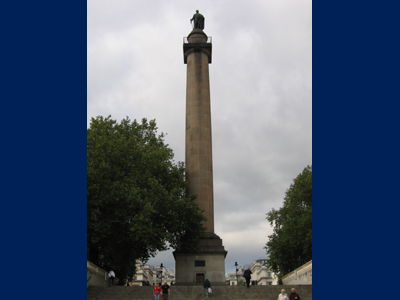
Basic - Levels 1Sample ImageThis is the sample image which I will use to demonstrate what "Levels" is and what effect it has. |
||||||||||||||||||
|
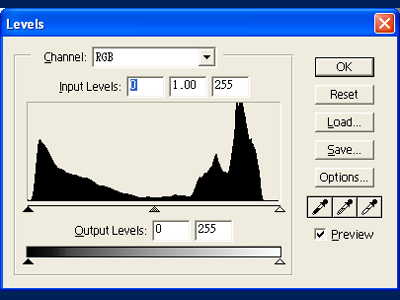
Levels windowSelect "Image->Adjust->Levels" to open the Levels window. A histogram with three little triangles is displayed. These triangles correspond to the three input level textboxes above the histogram. Each pixel in an image has a luminance value between 0(black) and 255(white). The histogram shows the frequencies of pixels related to each luminance value. |
||||||||||||||||||
|
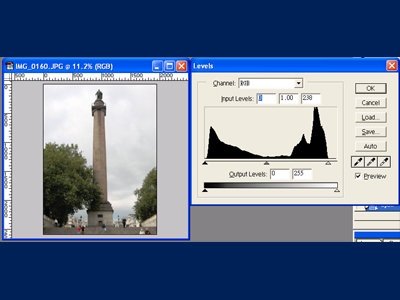
Right TriangleThe right triangle represents what input level will be the highest luminance value. For example, if the right triangle is moved to input levels 238, then pixels with this input levels will have a new luminance value of 255. Any pixel with its input level on the right hand side of the triangle will have their luminance values set to 255(white) as well. In other words part of the color channels(RGB) are clipped. |
||||||||||||||||||
|
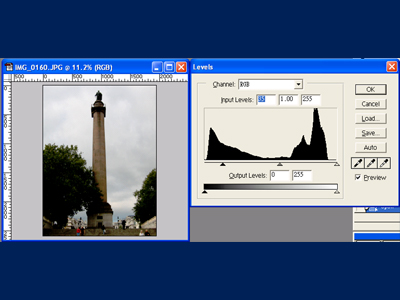
Left TriangleThe left triangle represents what input level will be the lowest luminance value. For example, if the left triangle is moved to input levels 35, then pixels with this input levels will have a new luminance value 0. Any pixel with its input level on the left hand side of the triangle will have their luminance values set to 0(black) as well. In other words part of the color channels are clipped. |
||||||||||||||||||
|
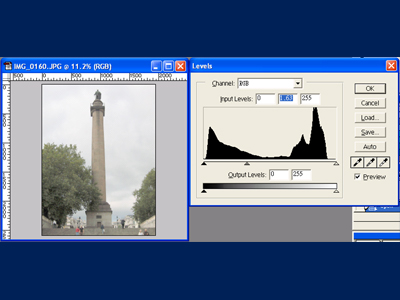
Middle Triangle 1The middle triangle represents the 18% medium gray. Moving it towards the left lowers the luminance value of the medium gray, ie. a darker gray(eg. 45%) has become the new medium gray. This action in effect brightens the tone of the three major color channels. |
||||||||||||||||||
|
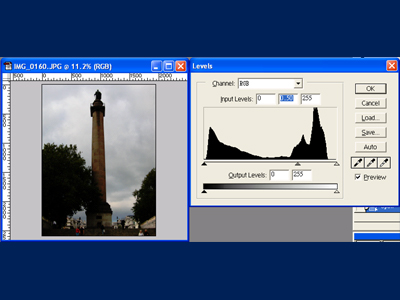
Middle Triangle 2Moving the middle triangle towards the right uppers the luminance value of the medium gray, ie. a brighter gray(eg. 5%) has become the new medium gray. The result of this action darkens the tone of the three major color channels. |
||||||||||||||||||
|
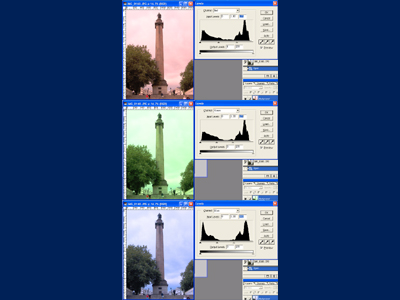
Individual Color Channel LevelsUsing the drop-down list at the top of the Levels window, you will be able to view the histogram and make adjustment on each individual color channel(RGB) |
||||||||||||||||||
|
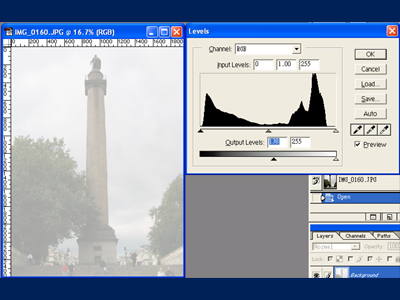
Brightness AdjustmentThe sliding bar at the bottom of the Levels windows offers a quick brightness adjustment on the image. It works by altering the range of the output levels. For example, if you change the min output levels to 130, then the lowest luminance value in the image will be 130 ie. no longer black. Moving the left triangle towards right increases the brightness and moving the right triangle towards left decreases the brightness. |
||||||||||||||||||
|
Rules for Levels adjustment: Try to have all the histogram bars as close as to the right edge without touching it. The above comparison shows the sample image before and after levels adjustment. Tips: Hold down the "Alt" key when sliding the left and right triangles, and you will be able to see which color channel(RGB) is clipped with the current levels adjustment. |
|||||||||||||||||||